
In this tutorial we will walk through how to view your email log.
This is useful if a parent or member of staff is not receiving account activation, notification, or password reset emails. It allows you to check whether the emails:
- Are being sent by the system
- Have been successfully delivered to the recipient’s inbox
- Were sent to an invalid email address
- Were rejected or filtered by the recipient’s spam or email security system
Please note that you will need to be a manager staff user on the browser version of Tapestry.
How to find your email log
To start, go to Help > Using Tapestry > Email Log.


On the email log screen you will see a list of emails sent out by the system to users on your account. Please note it will only show notification emails that were sent in the last 3 months. You can see the subject of the email, the address it was sent to, and the email status. The possible statuses are:
- Delivered – the email was successfully delivered. If the user claims they have not received the email, it it likely within their spam or junk folder.
- Bounced -the email could not be delivered. Likely reason: the email address is incorrect. Ask the intended recipient to double check they have provided you with the correct address, and check for minor mistakes, for example missing or added ‘.’ in the name, and the use of .com instead of .co.uk or vice versa.
- Spam Complaint – the recipient marked the email as spam. Due to anti spam regulations we have to disable emails to anyone who does this, but that can be undone once you’ve confirmed it was marked as spam mistakenly. It may be an indication of the email going to the wrong person due to a mix up with two similar email addresses. Make sure the one provided to you is correct.
- Delayed– there was a temporary problem with delivery, usually due to a fault with an email provider. The system will try again later and you should see a second record in the log to indicate if the email was delivered successfully on this attempt.

You can also Filter & Sort Email Logs to view certain emails using your preferred criteria.
- Subject – type of email, for example see only password resets or account activation emails
- Status – if the email was delivered successfully
- User – only show emails sent to a specific user
- Email address – you can search for a specific email address
- Order – oldest to newest or vice versa

What to do if no relatives are receiving notifications
Notifications will not be sent via email if a user has push notifications set up. In that case push notifications will be sent instead of email notifications.
If no relatives are receiving notifications, and they have checked that their notification preferences are not set to ‘internal’, it may be that notification emails to relatives are disabled.
To change this go to, Configuration > Relatives > Relatives’ User Permissions.


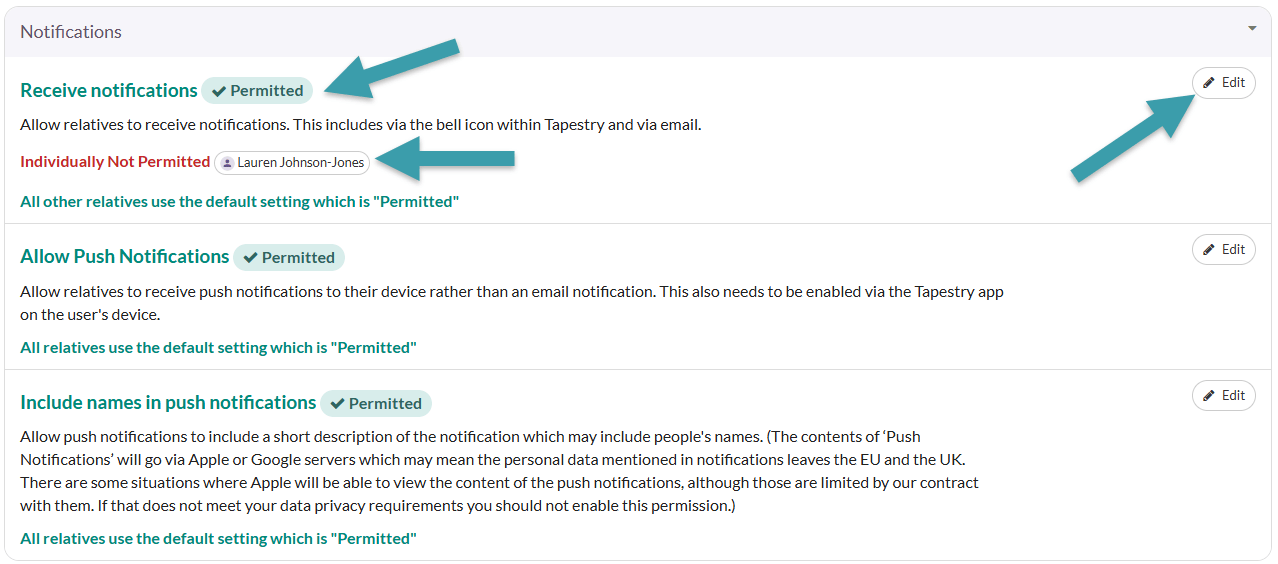
Next, scroll down to Notifications.
From this page, you can see whether your default setting allows relatives to receive notifications, as well as any individual settings you’ve applied for specific relatives. If you want to change either the default setting or the setting for a particular relative, click the Edit button.
And that’s it! You now know how to view your email log.
Feel free to contact our support team on customer.service@eyfs.info if you are unsure how to resolve a problem with receiving emails.