In this tutorial we will cover how to add and log planned and unplanned medication for the children within your setting. These forms can be sent directly to parents and carers to be signed off by them, either digitally or in person (depending on the preferences chosen by your setting).
The Accidents & Medication feature is automatically included as part of the Care Diary, but can be enabled by itself if the wider features of the Care Diary are not needed. You can manage which is enabled by going to Configuration > Features. Alternatively, take a look at our tutorials for enabling the whole Care Diary or for enabling Accidents & Medication only.
In this tutorial we’ll look at this feature from the browser, but you can also add and log administering medication via the Tapestry app. For information on accessing this feature via our app please take a look at this tutorial.
Manager users will be able to set permissions for Full Staff users and PIN Only staff users on the controls they will be able to have when it comes to logging medication entries. Manage these through Configuration > Staff > Staff User Permissions > Care Diary.
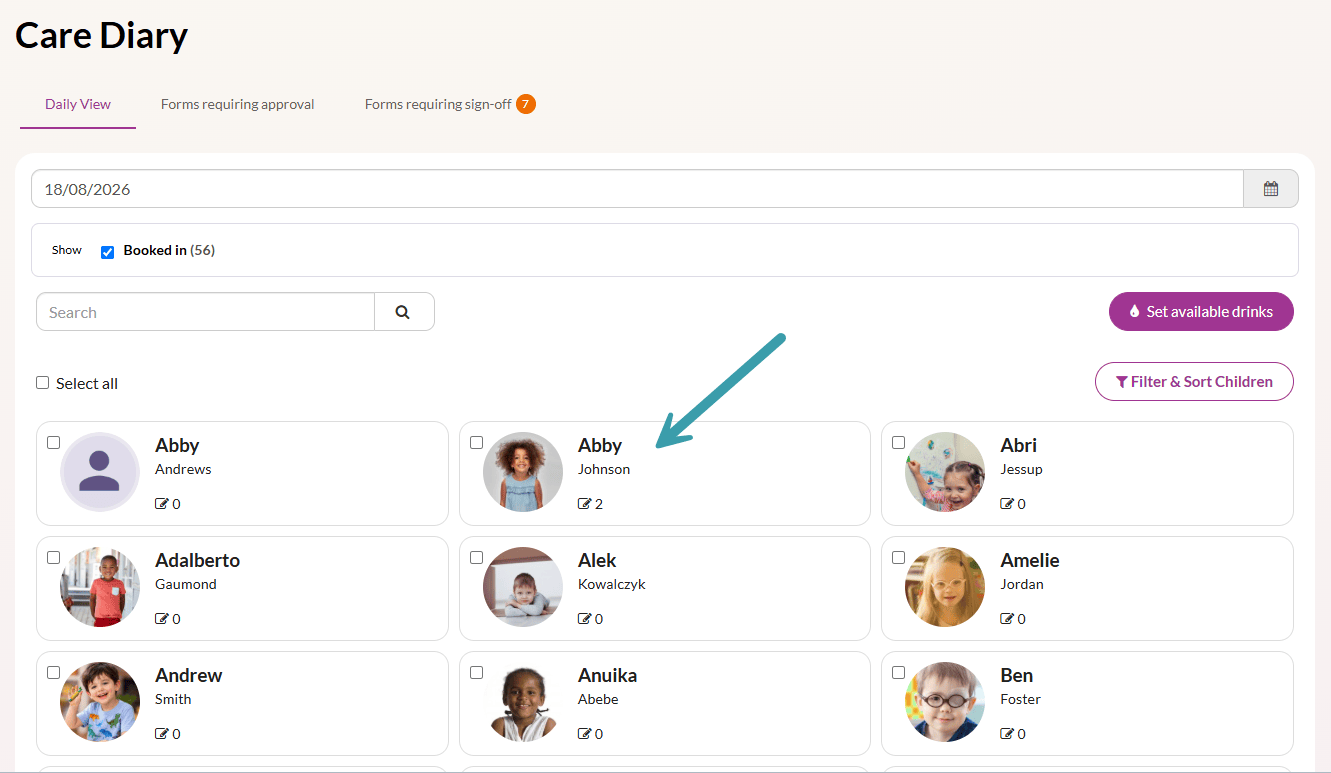
Start by logging into Tapestry, and heading over to the Care Diary in the left hand menu, or Accidents & Medication, depending on which feature your school or setting has enabled.
(This tutorial is going to walk through adding medication through the Care Dairy screen. If you have Accidents & Medication enabled, you will still be able to follow the same steps.)
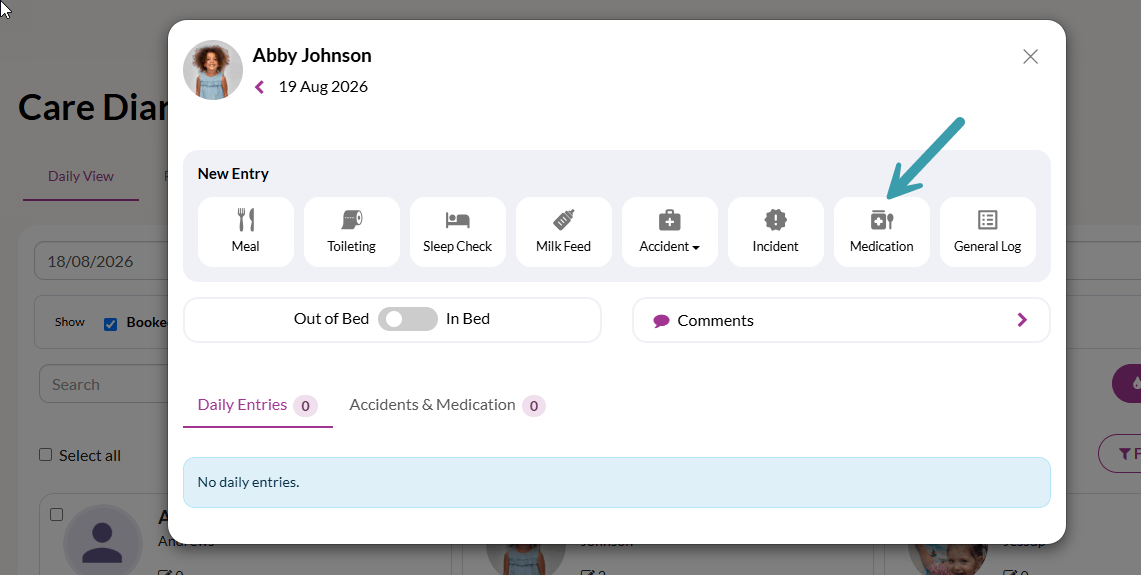
To find the medication section for a child, you will need to start by clicking on the child you are looking to add or view medication for. You will then be able to see the Medication tab within the child’s overview.
Once you click medication, you will be taken to another overview screen in which you will be able to:
- View and Administer Planned Medication
- Add new planned medication
- View Archived planned medication
- Administer Unplanned Medication
To read the details of planned medication, click on the name of it. This will give you an overview along with the ability to export a PDF of the medication form when you click Open full form.
Now let’s take a closer look at adding planned medication, and administering planned and unplanned medication!
Adding Planned Medication
To add a planned medication for a child, click on + Add new under the Planned Medication section.
Fill in the form with the details and click Create Planned Medication when you are finished.
Medication will automatically archive once it has reached its ‘Dates to be administered’ End Date.
You’ll then see that the planned medication form has not been shared with relatives and is requiring their sign off. If you have allowed relatives to sign accidents and medication from their own account (which you can do from Configuration > Features > Accidents & Medication Only Settings/Care Diary Settings) then you can Share with relatives. Relatives with parental responsibility will then receive a notification and be able to sign off the form from their own account.
If preferred, and if the child has no relatives with parental responsibility, you can instead Collect signature in person.
Back on the main Care Diary page you’ll also see the form under the Forms requiring sign-off tab, and can share with relatives from there as well. Once it has been signed-off by the relative it will disappear from the requiring sign-off tab.
From the child’s medication page you can click onto the medication name and open the full form to access the signing options.
Once the medication has been signed-off it’ll be available to administer. You can manually archive it at any time by clicking on the medication name and opening the full form and selecting to archive.
Administering Planned Medication
To administer a planned medication for a child, click Administer to the right of the relevant medication.
Check and complete the details of the administration and click Create when you’re done.
You’ll then see that the planned medication administration form has been shared with relatives straight away and is requiring their sign off.
If preferred, and if the child has no relatives with parental responsibility, you can instead Collect signature in person.
Back on the main Care Diary page you’ll also see the form under the Forms requiring sign-off tab, showing as ‘Shared with relatives’ and is awaiting their sign-off. Once it has been signed-off by the relative it will disappear from the requiring sign-off tab.
You will also see the medication back on the child’s overview.
On the child’s medication page you can see when this medication was last administered.
Duplicate a Planned Medication
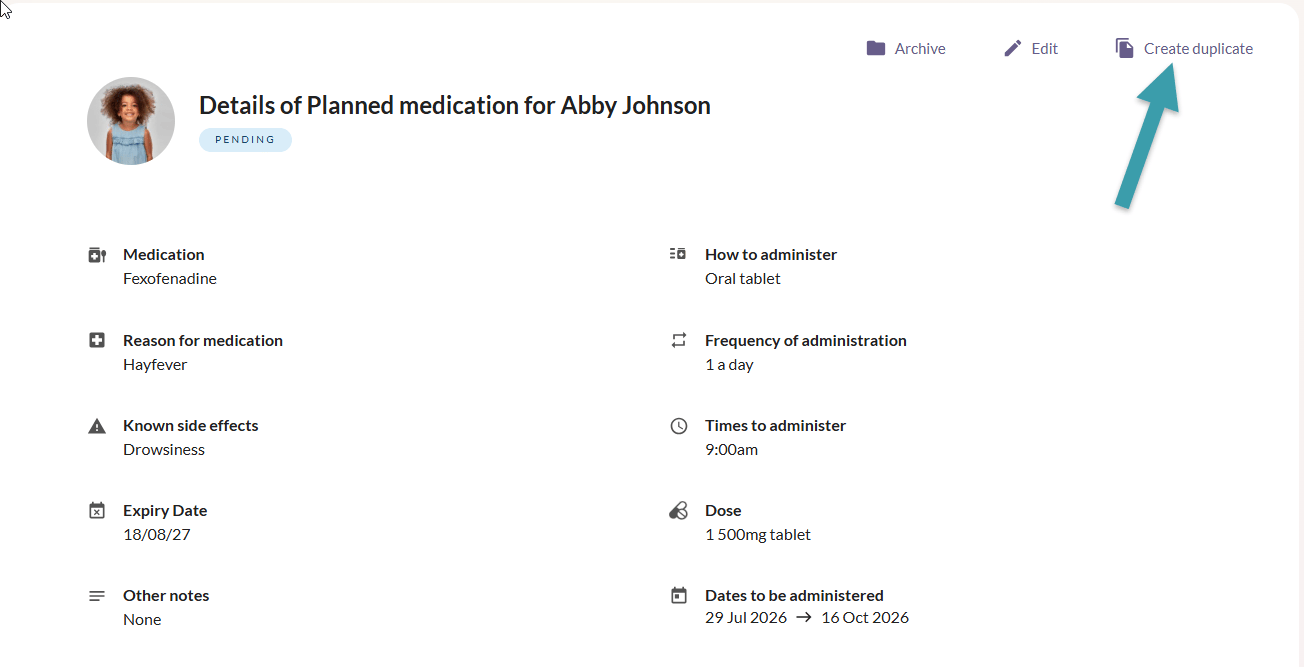
If you need to extend or update the details of an existing long-term planned medication, you can duplicate the planned medication.
First, click into the planned medication you want to duplicate. Then, click Create Duplicate.
This will repopulate the existing information. You will then need to add a new expiry date and end date. Please note, the start date will be automatically pre-populated with today’s date.
Once you have reviewed the information and entered the correct details, click Create Planned Medication to finish.
Administering Unplanned Medication
If you need to administer medication for a child which is unplanned, click Administer within the Unplanned section.
Fill in the details and click Create when you’re done.
You’ll then see that the unplanned medication administration form has now been shared with relatives and is requiring their sign off. If you have allowed relatives to sign accidents and medication from their own account (which you can do from Configuration > Features > Accidents & Medication Only Settings/Care Diary Settings) then you can Share with relatives. Relatives with parental responsibility will then receive a notification and be able to sign off the form from their own account.
If preferred, and if the child has no relatives with parental responsibility, you can instead Collect signature in person.
Back on the main Care Diary page you’ll also see the form under the Forms requiring sign-off tab, and can share with relatives from there as well. Once it has been signed-off by the relative it will disappear from the requiring sign-off tab.
You will then see the medication back on the child’s overview.
How to delete and edit unplanned medication
If you need to edit or delete an unplanned medication entry, first select the child you require. Next, select the correct date containing the entry you need to change. Once you have found the entry, click on the three dots to the right. This will bring up the options Edit or Delete.
Please note that you cannot delete planned medication. You can only archive planned medication.
Advice for sharing medication forms with relatives
In the above sections we’ve taken a look at how you can share the forms with relatives during the relevant processes, but it’s important to note that only relatives on Tapestry who have been given parental responsibility for the child will be able to sign the forms and view the entries from their account.
If you have chosen not to enable the Care Diary/Accidents & Medication feature for relatives, then you will only see the option to collect a signature in person. If the feature is enabled for relatives, then they will be able to either sign the forms digitally on their device, or do a ‘quick-sign off’ from their device.
Which sign-off option relatives can use will have been set by a manager when this feature was first enabled. A manager can change them at any time by going to Features > Care Diary Settings OR Features > Accidents & Medication Settings, depending on which feature is active.
Additionally, if staff at your setting don’t have permission to sign off their own forms, their forms will first appear in the middle tab Forms requiring approval, where a manager will need to check and approve them being being ready for parental sign-off. You can change permissions for all or some staff members at any time by going to Configuration > Staff > Staff User Permissions > Care Diary/Accidents & Medication.
Click on View.
From here you can Approve. It will then appear as requiring relative sign-off.
And that’s it!
You can view and export all medication through the monitoring screens. This tutorial will run you through it.
For support with adding accidents and incidents through the Care Diary / Accidents & Medication, see the relevant tutorials below.