Tapestry Pay allows relatives to make payments for their invoices directly through Tapestry. You can find out more about Tapestry Pay here, and the processing fees here.
In this tutorial we’ll take a look at how to use this feature and navigate the Pay Portal. Tapestry Pay onboarding will need to be completed before you can make use of the feature, so if you haven’t done that yet please refer to this tutorial first.
Relatives will be able to pay through Tapestry as soon as you have completed onboarding and your application is approved, so we’ll also take a look at how to turn this off if you ever want to stop all or individual relatives from using Tapestry Pay. If your relatives need help on making payments through Tapestry, or if you’d like to see how it works from a relative’s point of view, then you can take a look at our relative tutorials for paying via the browser and app.
You will need to be a Manager staff user on the browser version of Tapestry to access Tapestry Pay.
In order for relatives to use Tapestry Pay you will need to:
- Have your onboarding application approved.
- Set the relative user permission ‘Show account balances’ to permitted.
- Set the relative user permission ‘Relatives can pay through Tapestry’ to permitted.
Navigating to Tapestry Pay
You can access the pay portal by going to Management System > Finance > Tapestry Pay.
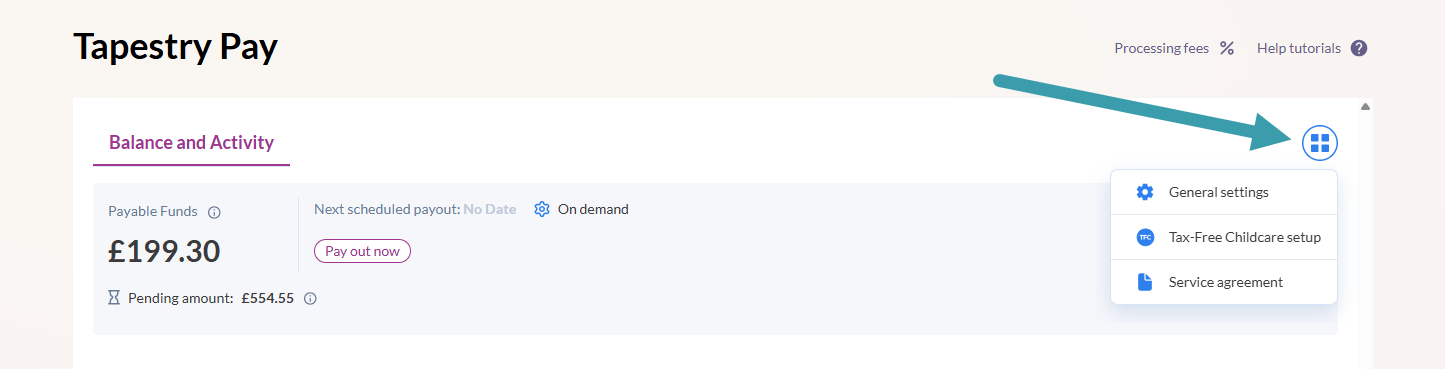
At the top of the page you’ll find your Payable Funds and Pending amount. Pending funds are made up of transactions that have processed but not yet settled in your account. Card transactions usually take 3 working days to settle. Once funds have settled they’ll contribute to your payable funds amount, and are available for payout.
You can see when the next automatic payout will happen and the frequency. If you’d like to change the frequency of scheduled payouts then click on the cog to make your new selection and then Save.
You can also payout at any point by clicking Pay out now. Making sure you’re happy with the details shown, click on Next and follow the steps.
If needed, you can adjust some settings from here and view your agreement. There are three setting options: General Settings; Tax-Free Childcare setup; Service agreement.
If you need to make changes to your Tapestry Pay set up that aren’t configurable here (such as linked bank account) then please get in touch at customer.service@eyfs.info.
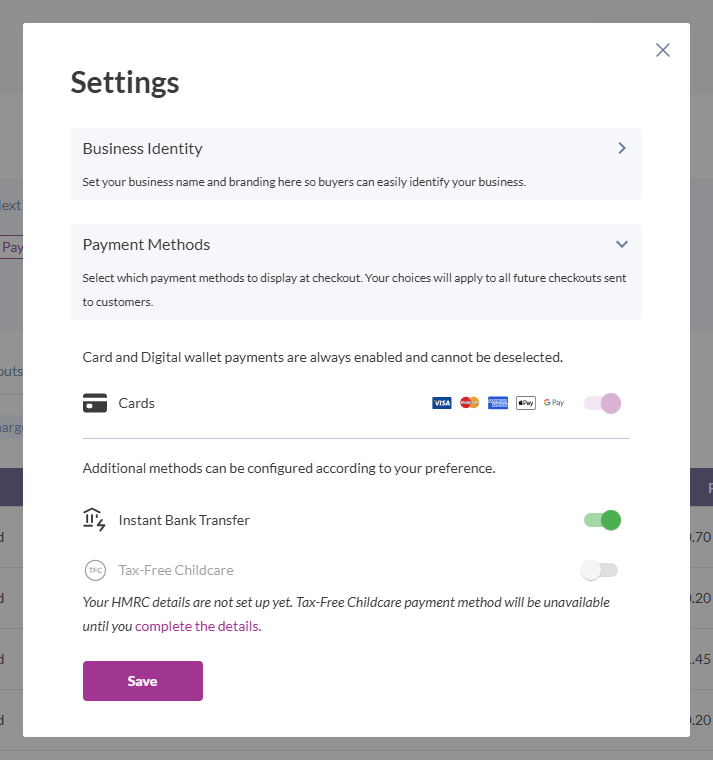
Under General settings you’ll find settings for Business Identity where you can amend your name and logo, and Payment Methods where you can turn off the ability for relatives to pay via bank transfer and Tax-Free Childcare. It’s not possible to disable card payments; if you want to turn off relative’s ability to use Tapestry pay we’ll cover the User Permission for this further into this tutorial.
Under Tax-Free Childcare setup you can enable Tax-Free Childcare (TFC) if you didn’t do this during the initial setup process. You can also amend your existing details and amend your connected bank account.
Finally, under Service agreement you can view and download your service agreements.
Next on the page you’ll find a history of all payments, disputes, and payouts associated with Tapestry Pay. If you’d like to view all payments (Tapestry Pay and manual payments) then you can take a look at this tutorial.
Under the Payments tab you’ll find a list of payments with the following details: reference, status, when the funds will settle, which relative made the payment, the method/type of payment, the gross payment amount, fee, and net amount, and when the payment was made/charged.
Click on the arrow to the left of the payment reference to see further details. You can also filter and sort the payments, and export the payments or generate a reconciliation report.
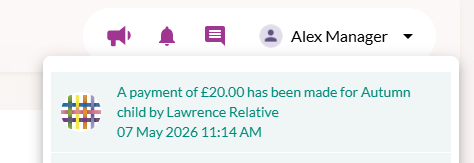
Once payments have been made you’ll also receive a notification to let you know.
Under the Disputes tab you’ll see a history and details of payments that have been disputed. This will include: the payment reference, the associated relative, the method/type of payment, the disputed amount and fee, and when the dispute was created.
You can also filter and sort the disputes.
Under the Payouts tab you can see all of the payouts that have occurred, including: the payout ID, gross payment amount and net amount, the currency, status, and when the payout was created/requested.
You can filter the payouts and export them all. You can also click on the Payout ID and Payout Summary to view further information.
After clicking on the Payout ID you’ll see a list of all of the transactions that have been included within the payout. This is done by taking you back to the payments tab with a payment reference filter applied.
Clicking on the Payout Summary will give you a breakdown of the gross and net amount, and fees for everything that makes up the payout, which can consist of: charges, refunds, adjustments, chargebacks and processor fees.
You can also see a list of the trasactions that have been included within the payout.
As mentioned at the start of this tutorial, relatives will be able to use Tapestry Pay as soon as you have completed onboarding and your application is approved. It’s not possible to disable the Tapestry Pay feature entirely, but you can prevent one or all of your relatives from paying through Tapestry, by managing the feature permissions.
To do this, go to Configuration > Relatives > Relatives’ User Permissions.
Scroll down the page and click on the Invoices and Account Balances section. Here you can see the permission ‘Relatives can pay through Tapestry‘. If this is permitted (alongside ‘Show account balances’) then they will be able to access and use Tapestry Pay to pay their invoices directly from their account.
To amend this permission, click on Edit.
You can them amend the Default permission for all relatives and, if preferred, you can set Individual Permissions for some relatives. In the below example, all relatives will be able to use Tapestry Pay except for Abbie Anderson.
If you make any changes click on Save at the bottom.
And that’s it! If you require any further assistance with using Tapestry Pay please get in touch at customer.service@eyfs.info and we’ll be happy to help.