
In this tutorial we’ll run through how to set the notification preferences for your own personal account. Changing these settings will only change the preferences for your own login; they will not affect how other users receive notifications. You can choose how you’d like to be notified for different account events, if at all, and the frequency of email notifications, if that is your preferred way of being notified.
PIN only staff members will not have the option to receive email notifications, as they don’t have emails associated with their accounts. They will only have the option to receive notifications internally or to disable notifications. Managers can reset notification preferences by User Group if required in the User Permissions section.
Notification options available
There are 5 options to choose between for almost all notification types. The only exceptions are the notification preferences for Invoice payment requested and Payment Reminders, which are mandatory, and will be sent via email as well as internally. The 5 total options are:
- Disabled: No internal notification and no email.
- Internal: No email. You can only see your notifications from within your Tapestry account. New internal notifications are shown by the bell icon by your name in the top right-hand corner on the browser version of Tapestry. If you click on that you will be able to see your notifications.

- Immediate email: You will be emailed as soon as the notification event occurs (e.g. as soon as an observation is added). Plus internal notification.
- Daily email: You will receive a daily email every 24 hours containing all notifications that have this preference. Plus internal notification.
- Weekly email: You will receive a weekly email every 7 days containing all notifications that have this preference. Plus internal notification.
If you have enabled and set up push notifications on your Tapestry app then these email notifications will come through as an immediate, daily, or weekly push notification instead of email.
Changing your notification preferences
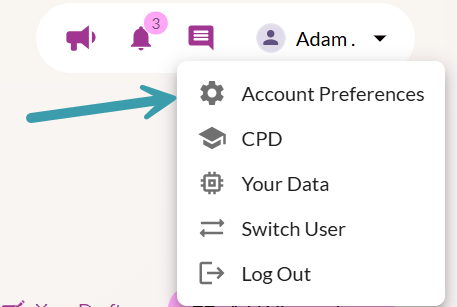
So, to change your notification preferences click on your name in the top right-hand corner and select Account Preferences from the drop-down menu.
This will take you to your account preferences screen. Under ‘Notifications’ click on the option to Change Notification Preferences.


If you make any changes scroll to the bottom of the page and press Save. Or to return to the previous page you just need to click on the Back To Edit Preferences Page button.

And that’s how you save your preferences! You can return to the Notification Preferences page at any time to change them.