Key

Information

Warning

Integration

How to use the Care Diary features

In this guide we will walk through how to use the Care Diary on the browser version of Tapestry. If you haven’t setup the Care Diary yet please take a look at this tutorial

Accessing the Care Diary

When logged into the browser version of Tapestry, start by clicking on the Care Diary tab from the left hand menu. 

The Care Diary features

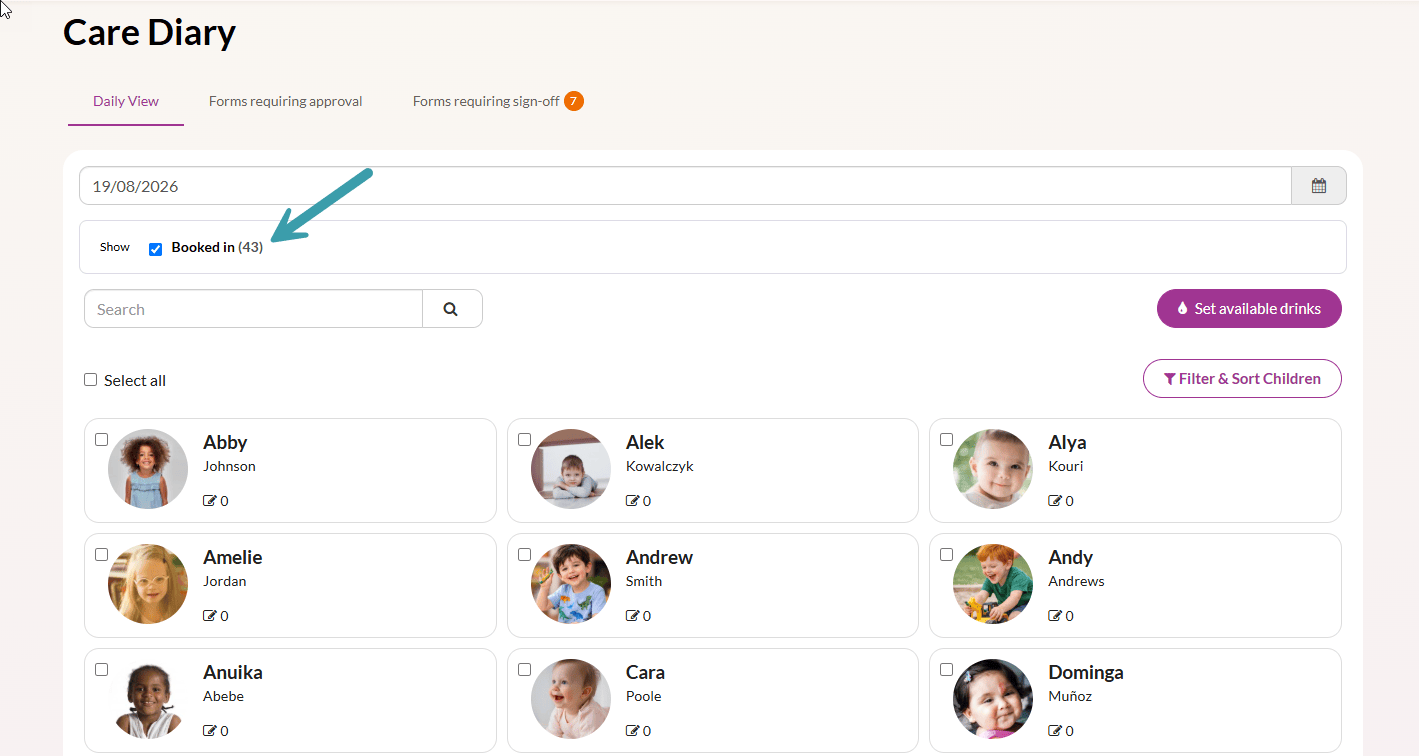
On this screen you will see the list of children within your setting.

If you’d like to filter the children that appear, such as those who are in that day or a certain group, click ‘Filter & Sort Children’. When you’re done, click Apply

To add an entry, select the child you want to add it for. You’ll then be able to select the entry type. 

Once you have selected the entry type, follow the steps to complete the form and finish these by clicking Create

Adding a Care Diary entry for an individual child

If you’re logging a sleep entry, as well as on clicking Sleep Check you can also use the toggle. This will automatically log the time you marked the child in/out of bed. If this needs to be edited, you can click the pencil icon

You’re also able to set any available drinks for the day. Do this by clicking on Set available drinks. 

Screenshot of where to set available drinks

You can add drinks that are available throughout the day here and Save. This/these will then appear in the care diary entry for every child for that day. If you have entered drink options previously, you will see them reappear within the list of options.

This happens when you have the All-day drink autocomplete option ticked through the Care Diary settings. For support with configuring your Care Diary settings, take a look at the tutorial at the end of this guide. 

Screenshot of where to save drink options
Autocomplete drink option example

If you’re wanting to add an entry for multiple children at once, then you can do so by clicking the box next to their name. Or if you’re selecting all children, click Select all. 

You’ll then have the option to Choose Action, where you can choose the entry type. 

Bulk adding care diary entries

In the example below, we’ll add a meal entry. You are presented with a Main Control at the top of the screen where you can add all of the details such as meal type, what food there was, and how much was eaten. 

Then, to tailor it to the individual child below the main control you’ll have the list of children. To expand all children’s boxes, click Expand all. Alternatively, click the arrow to expand the details for the individual child. 

You can then amend their entries to customise them even further such as the amount eaten. 

Don’t forget to save by clicking Create at the bottom of the screen. 

To make a comment for a child, or view or reply to a relatives comment, click on Comments.

If you have a new comment from a relative, you will see that there is an unseen comment to read.

When an accident entry has been added for a child, before the relative is notified you will see it appear as requires attention at the top of the page. 

At collection, you can inform the relative of the accident. This can then be marked as discussed and either a hardcopy can be signed or you can take a digital signature. 

Once marked as discussed, the relative will be able to view the accident as part of the child’s daily entries.

To notify relatives of any entries made to their child’s journal, you can either click on the individual child as shown in the first picture, or to notify relatives in bulk select the children and choose Notify relatives from the Choose Action box.

We hope this supports you in using the Care Diary feature!

If you are just using accidents, follow the Accidents guide on the left. Alternatively, for support on the set up of your Care Diary, follow the guide on the right. 

Have you tried Tapestry yet?

Take out a free, no-obligation two week trial today.