
To upload a Bespoke Framework to Tapestry, you will need to have it saved as a CSV file. A CSV file is a type of Excel file.
We have a useful video that managers with access to the Configuration menu can watch by going to Configuration -> Assessments and pressing on Add a new bespoke framework. Having watched the introductory video on bespoke frameworks on that page, clicking on the option Begin adding your framework at the bottom of that page, will take you to a page where you can watch a video to help you create your CSV file.
Much of which is covered in that video is covered in more detail on this page. So let’s get started….
Below you can see an example of a completed bespoke framework CSV.
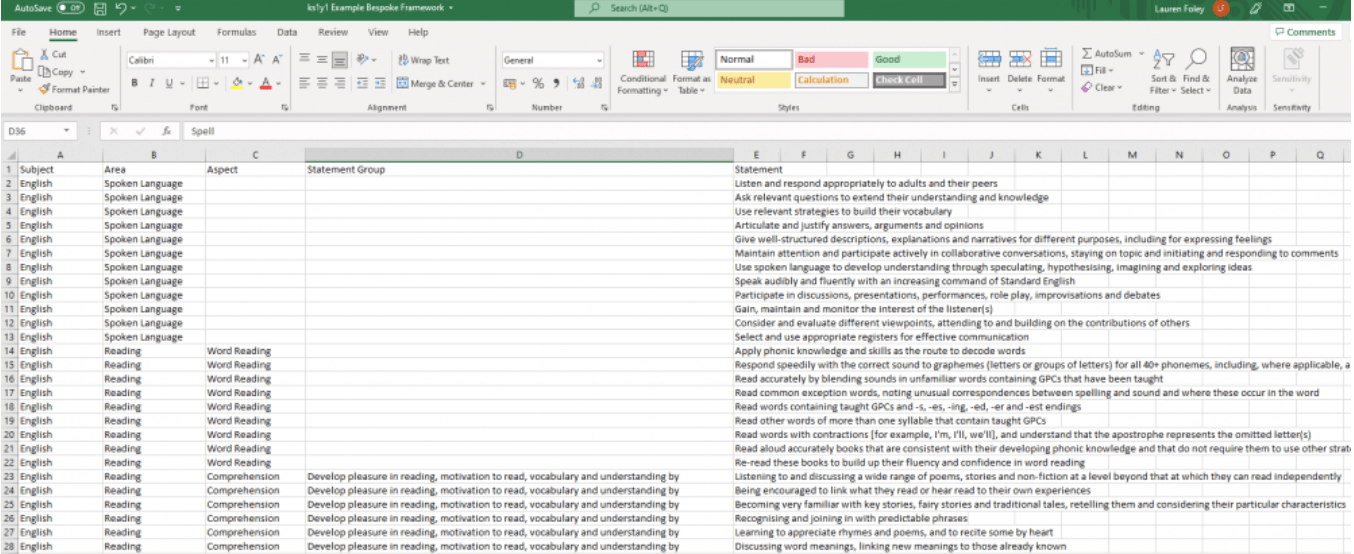
You may find it useful to download a copy of it linked here and keep it open as you read through these instructions.
When you are creating your CSV file, you will need to consider two things: the Components and Details of your framework. These are covered in later, but you can also read more about them in the other tabs on this page.
Details

Breaking down the example CSV further for you, if you look at Column A you can see in row 1 the title of this column is ‘Subject’. So listed in this column are all the subjects (English, Maths, and Science etc.) that make up this framework. Everything highlighted in the screenshot below, so all the subject names, are ‘Details’; only row 1 is not a Detail.

Column E in the CSV shows the ‘Statements‘. Again, everything highlighted here is a Detail. That’s everything other than the title of ‘Statement’ on row 1.

It is important that similar ‘Details‘ all go in the same column e.g. all statements should be grouped together in the same column.
Repeated words
You may have noticed that in column A, the subject names are repeated, but all the Statements in column E are unique.
To see why, let’s take a look at some of the full rows for English.
Each row needs to make sense by itself. You need to make sure that you can pick any cell and be able to tell from the rest of the row where you’d be able to find it in your framework.
If you looked at C14, you would find ‘Word Reading’. From this, you would be able to find ‘English’ and then ‘Reading’ within the example framework by looking at the cells to the left of it, and that there will be nine ‘Statements’ within it – ‘Apply phonic knowledge and skills as the route to decode words’ down to ‘Re-read these books to build up their fluency and confidence in word reading’.
You could look at any of those 9 statements and see that they all belong in ‘English’ > ‘Reading’ > ‘Word Reading’.

Lets take a quick look at what this will look like on Tapestry so you have some context.
When you first import it into Tapestry via the ‘Upload your CSV‘ tool covered on the page Uploading your Bespoke Framework.

You can see how the further right columns are nested into the further left ones. When it is enabled for your observations, it will look like this:

As you can see, repeating a Detail does not mean it will show up multiple times, but you need to do it so Tapestry knows where to put all the nested Details when the framework is uploaded.
Going back to the spreadsheet, every time you want to repeat the same Detail, you can either rewrite it (this is what we have done in the example), or use “ “. This lets our system know that you want to just repeat what is above. You can use this as many times as you like; it will keep looking up the rows until it finds a cell with something in (even if that’s just a blank space to indicate that nothing should be there).

Blank Cells
You may have noticed there some blank cells; this can be seen in the example in the first row of English > Spoken Language. Here you have something for column A (Subject), B (Area) and E (the Statements) but nothing for columns C and D (the Aspects and Statement Groups).

It is absolutely fine to leave a cell empty. These boxes won’t appear as empty when you have uploaded your framework to Tapestry.
Below you can see how this framework appears on Tapestry. If you look immediately below ‘Spoken Language’, you will see there was nothing in column C or D, so the picker has jumped straight to what was in column E.
Components
Components are your overall headings for each type of Detail. They will each be a word (or words) which broadly describe all the things in a column. For example, in the column with ‘English’ and ‘Science’, the Component could be ‘Subject’.
The other Components for this framework are shown highlighted below in row A of the spreadsheet. They are: Subject, Area, Aspect, Statement Group and Statement.

These Component names won’t be visible on the assessment picker within observations, but they will be useful later to help you quickly find the assessment you’re looking for.
Final notes on the spreadsheet content
The following are some further hints and tips that will be helpful as you create you spreadheet.
- Earlier we mentioned that you need to put all similar Details in the same column. Putting this is another way may be helpful. You mustn’t mix Components in the same column. For example, do not put any Aspect names in the same column as any Statements. If you do, you’ll find that your framework gets all jumbled up when it’s on Tapestry and it won’t be so easy to navigate.
- Another thing you should not do is skip adding a Component name if you can’t think of one. It is fine to use something generic as long as you know what it means e.g. ‘Aspect 1’ and ‘Aspect 2’.
And that’s it! Now you’re ready to import the CSV file you have created into Tapestry. You can see how to do this in our next tutorial Uploading your bespoke Framework.